
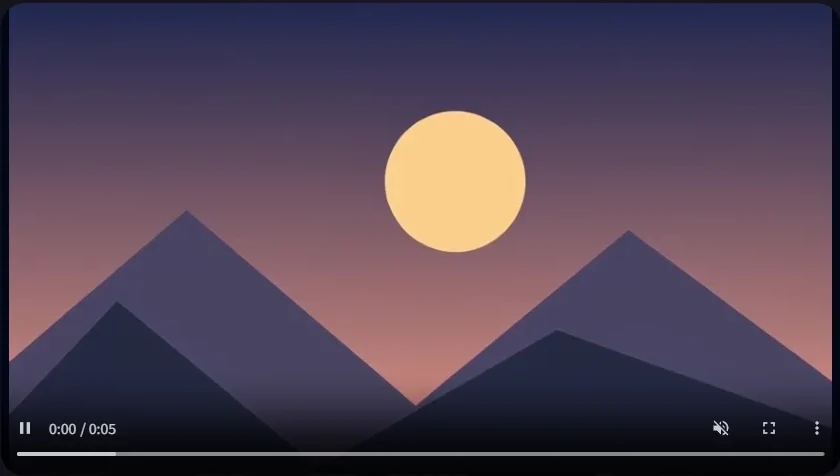
Use a first frame when you know how the shot should begin. Add a last frame when the final composition matters enough to provide an image for it. The models and settings available in the workspace determine which inputs you can use.
When one frame is enough
For a short landscape push, a single starting image gives the model the subject and composition. Use the prompt to describe the camera move. In the sunset tutorial, a five-second clip was generated from one illustration and a prompt asking for a slow push toward the sun.
This is also a good way to test how a portrait or product photo reacts to movement. Start with a small change, such as a turn of the head or a sideways camera slide. Compare the opening and closing frames to see whether the features you care about stay consistent.
When to add the last frame
Try two frames if you have a specific end view, such as a product centered in the closing shot. Keep the subjects, lighting, and aspect ratio similar across both images. A medium view and a slightly closer view of the same scene give the model a smaller change to bridge.
In the prompt, describe how the shot moves from the start to the end. For instance, ask the camera to move closer as the product remains still. Preview the middle of the clip, where changes in composition can make shapes or objects shift.
If the transition jumps
Bring the frames closer together in composition. If the first image is a wide exterior and the last is a close-up indoors, make those as separate shots and cut between them in your edit. For a continuous move, keep the lighting and viewpoint closer across both inputs.
Choose a model that shows a last-frame control in the image-to-video workspace. Review the credit estimate after changing the model or duration, then compare a short result with the two input images.